Step 1
Open GitHub integration in your site settings
Go to the selected site in Faurya and open the GitHub integration panel from the settings area.
GitHub Integration
Link your GitHub repositories to Faurya and view commit activity in context with visitor, conversion, and campaign performance on the same analytics timeline.
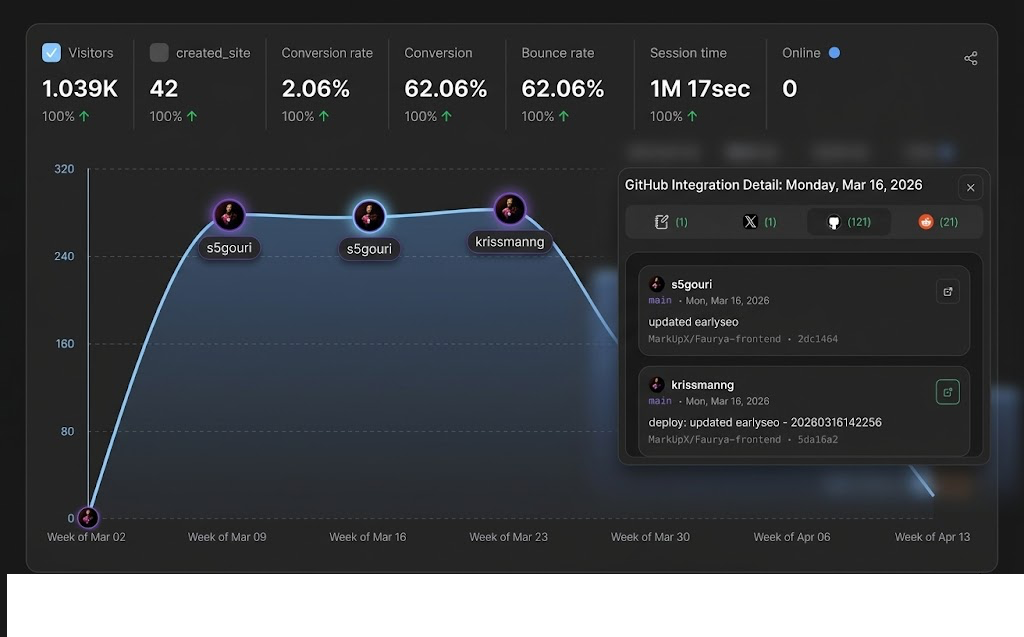
GitHub integration screen with app connection, repository selection, and commit markers on the analytics timeline.
Prepare these before connecting repositories to your site.
Follow this user flow to connect GitHub and start commit tracking.
Step 1
Go to the selected site in Faurya and open the GitHub integration panel from the settings area.
Step 2
Start installation and authorization. If the app is already installed for your account, Faurya links it automatically.
Step 3
After installation is recognized, open the repository selector to view repositories available under your GitHub app installation.
Step 4
Select repositories to attach to this site. Connected repositories are marked clearly and can be disconnected anytime.
Step 5
Once connected, new commits are ingested and surfaced as code activity markers in your analytics timeline.
Step 6
Add additional repositories from the same installation without repeating the full account connection flow.
What users see at each stage of the GitHub integration interface.
| State | User-facing behavior |
|---|---|
| No GitHub installation detected | Shows a Connect GitHub call-to-action with a short explanation of what will be authorized. |
| GitHub app installed, selector open | Displays available repositories. Already connected repositories are marked Connected and can be disconnected from the list. |
| GitHub app installed, selector closed | Shows all repositories currently linked to the site, each with a dedicated Disconnect action. |
| Repository disconnection confirmation | Requires explicit confirmation before unlinking a repository from this site to prevent accidental removal. |
| Account-level GitHub disconnect | Disconnects GitHub from this Faurya account only. The GitHub App remains installed on GitHub unless removed there. |
| Installation connected but no repositories | Shows a no repositories found message and keeps selection controls available for retry after access changes. |
One-click GitHub connect flow from dashboard settings
Automatic detection of existing GitHub app installation
Per-site repository linking
Connected repository status badges and inline controls
Safe disconnect confirmations for repository and account actions
Multi-repository support through Connect Another Repository
Commit activity ingestion tied to selected site
Code activity markers shown directly in the analytics timeline
Quick checks for common repository connection and sync issues.
Confirm the same GitHub account has repository access under the app installation. Then reopen the selector and retry loading.
Check whether the repository is already linked to the same site. If not, verify installation permissions and try again.
Ensure there were commits in the selected analysis window and that your timezone/range includes recent repository activity.
Wait for in-progress requests to finish. If needed, retry after refresh and verify you still have permission to manage this integration.
This is expected. Faurya account disconnect does not uninstall the GitHub App. Remove it directly in GitHub app settings if required.
Faurya starts ingesting commit activity for that repository and maps it to your site's analytics context.
Yes. Use Connect Another Repository to link additional repositories under the same GitHub installation.
Yes. Repository-level disconnect is separate from account-level GitHub disconnect.
No. It only removes the connection from this Faurya account. App installation lifecycle remains in GitHub.
Commit events appear as code activity markers in the analytics timeline so you can correlate releases and traffic behavior.
The selector marks already connected repositories to prevent duplicate links. Disconnect first if you need to relink.