Step 1
Export data from Plausible site settings
Generate and download the official export ZIP from Plausible site settings. Use the dedicated export workflow rather than chart-level download.
Plausible Integration
Bring your existing analytics history into Faurya with a guided ZIP import flow, verify import outcomes, and preserve long-term trend continuity.
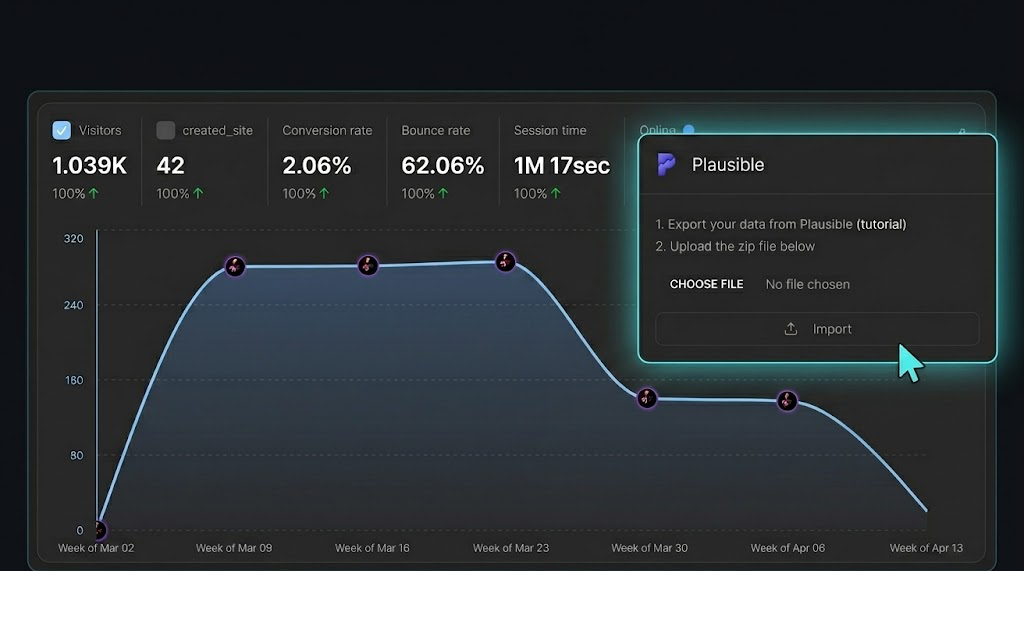
Plausible migration screen with ZIP upload, schema validation checks, and historical import status.
Prepare these before uploading your Plausible export.
Follow this import flow to bring historical Plausible data into your selected site.
Step 1
Generate and download the official export ZIP from Plausible site settings. Use the dedicated export workflow rather than chart-level download.
Step 2
Go to your selected site and open the import area where Plausible upload is available.
Step 3
Click Choose File and select your Plausible ZIP. The selected filename is shown before import starts.
Step 4
Click Import to process the file. Import progress and loading state are shown while ingestion is running.
Step 5
After a successful run, Faurya shows created events, created visitors, and imported date range.
Step 6
Imported totals remain visible in status. If needed, owners can delete imported data after explicit confirmation.
User-facing behavior in the Plausible import interface.
| Workflow item | Current behavior |
|---|---|
| File type requirement | Upload accepts ZIP files only. |
| Pre-import state | Import button is disabled until a file is selected and no import is currently running. |
| In-progress state | The interface shows importing/loading state to prevent duplicate submissions. |
| Success response | Displays imported visitors count, imported events count, and the imported date range. |
| Error response | Displays a failure message and detailed error reasons when available. |
| Existing imported data | Status shows total imported events and stored date range even after initial upload. |
| Deletion control | Delete Imported Data is protected by confirmation because the action is irreversible. |
Visitor and event history
Page and entry/exit page data
Traffic source and referrer dimensions
UTM campaign fields
Browser, device, and operating system dimensions
Location dimensions (country, region, city)
Session quality fields such as bounce and duration metrics
Historical date ranges for continuity after migration
Quick checks for common upload and import issues.
Confirm a ZIP file is selected and no import is currently running. The button remains disabled without a selected file.
Use the official Plausible export ZIP from site settings and retry. Review detailed error messages for malformed or unsupported input.
Verify the exported date range in Plausible and compare with the success summary date window shown after import.
Use Delete Imported Data in settings, confirm the irreversible action, then re-import a corrected ZIP file.
Check the current analysis date range and timezone context to ensure it includes the imported period.
Upload the ZIP export from Plausible site settings. This import flow is designed for that packaged export format.
You get a success summary with created visitors, created events, and the imported date range.
Yes. Existing imported data status shows total imported events and date range in settings.
Yes. Owners can delete imported data, but the action requires confirmation and cannot be undone.
Yes. Imported historical records provide continuity so you can analyze past and new performance together.
Use the official import tutorial in Faurya docs: /docs/advanced-features/import-from-plausible.