Step 1
Open your site in Faurya settings
Go to the site you want to enrich and open the import/integrations area for Google Analytics 4.
GA4 Integration
Connect GA4 BigQuery export with Faurya to verify dataset access, import historical events, and enrich your analytics with trusted conversion context.
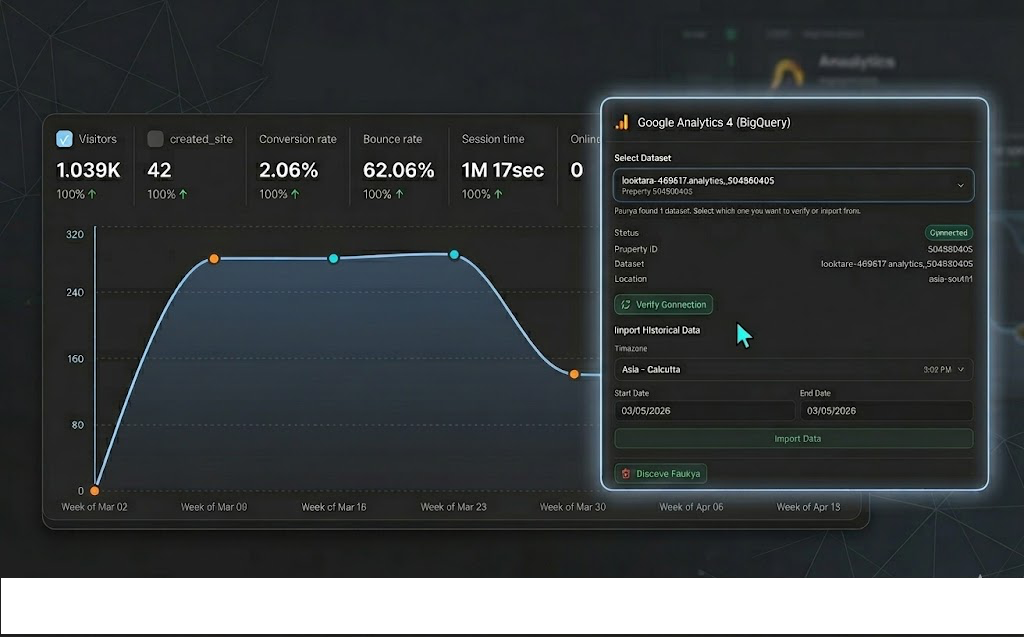
GA4 import screen with dataset verification, timezone date-range controls, and import progress status.
Prepare these requirements before connecting GA4 BigQuery to Faurya.
Follow these steps to connect, verify, and import GA4 data.
Step 1
Go to the site you want to enrich and open the import/integrations area for Google Analytics 4.
Step 2
Click connect and complete Google OAuth with an account that can read your GA4 BigQuery export.
Step 3
Faurya scans accessible BigQuery projects and lists matching analytics_<property_id> datasets.
Step 4
Pick the dataset you want, then run Verify Connection to confirm dataset and events tables are accessible.
Step 5
Set timezone, start date, and end date. Faurya converts the selected local range to UTC for import jobs.
Step 6
Queue the import, refresh status, and review rows read/inserted as jobs are processed.
Key controls available while managing GA4 datasets in Faurya.
| Control | What it does |
|---|---|
| Dataset selector | Switch between connected GA4 datasets and pick the source you want to verify or import from. |
| Verify Connection | Checks dataset availability, events tables, latest table date, and intraday support. |
| Timezone selector | Sets the local timezone used to translate calendar dates into UTC import windows. |
| Start and End date | Defines the historical range you want to import from GA4 BigQuery. |
| UTC import preview | Shows the exact UTC range generated from your selected timezone and dates before queueing jobs. |
| Import Data | Queues one or more backfill jobs for the selected range and begins processing. |
| Refresh status | Pulls latest job and dataset status while imports are queued or processing. |
| Disconnect Dataset | Revokes future imports for that dataset and cancels queued jobs while preserving already imported data. |
Google OAuth-based GA4 BigQuery connection
Automatic discovery of analytics_<property_id> datasets
Dataset verification before import
Timezone-aware historical backfill
Import status and active job visibility
Rows read and rows inserted progress metrics
Dataset-level reconnect and disconnect controls
Keeps imported history even after disconnect
Quick checks for common GA4 import issues.
Make sure GA4 BigQuery export is enabled and your dataset follows analytics_<property_id> naming. Also verify the connected Google account can read the project and dataset.
Run Verify Connection again and confirm events tables exist in BigQuery. Check permissions and that the selected project and dataset are correct.
Confirm start and end dates are valid, timezone is correct, and the range is within supported limits. If another import is running for the same dataset, wait for it to complete.
Large date ranges create many queued jobs. Use Refresh status to monitor progress and start with a shorter date range for faster validation.
Reconnect with Google and select the same dataset again. Previously imported data remains available in your Faurya site.
It imports from Google Analytics 4 BigQuery export datasets, not from GA4 UI reports.
Yes. The Google account you connect must have read access to the BigQuery project and GA4 dataset.
Yes. You can add datasets and switch between them from the dataset selector.
Timezone ensures the date range you choose is interpreted as local-day boundaries before converting to UTC.
No. Disconnecting stops future imports and cancels queued jobs, but already imported data is preserved.
Small ranges can appear quickly, while larger ranges take longer because imports are processed as queued jobs.